New SpeedDIAL Catalog Quick Reference
In an effort to expand catalog coverage and product offering, to increase speed to market, to increase catalog accuracy, and offer additional value added information to our customers, WORLDPAC together has embarked on the single largest programming project in WORLDPAC’s history to date.
We believe that WORLDPAC customers will benefit by having timely access to the items they need to support their customer’s needs and from better integration with shop management programs due to our extensive catalog improvements and increased catalog coverage.
Next Generation Quick Reference
Section 1 - Navigation Basics
Pressing the Alt key will always reveal available shortcuts as an underline of the command letter
Tab will always move the cursor to the next active field or window
Back Tab will always move the cursor to the previous active field
Esc will always close any open window and return focus to the previous window
Pressing F2 will open the model selection window
Pressing the space bar will select the highlighted part type and place a check in the check box
Hovering over a warning sign will display application notes without going to the details screen
If there is no other information needed, hovering over a checked box in the part type window will display the OE part number and the in some cases, recommended quantity per car
Section 2 - Suggested configuration
Use the view menu option to select the preferences option
Match the options shown below
Customize Makes
To reduce the number of car manufacturers displayed in the Makes dropdown, use the Select none button to deselect all Makes then select the Makes desired. When entering application information, only selected makes will be available in the Makes dropdown.


Section 3 - Short Cuts
Next Generation Catalog Keyboard Navigation
|
F-Keys by Description |
Close Search window |
F3 |
Close Wizard |
F3 |
Expand/collapse Category node |
F4 |
Minimize Catalog |
F3 |
Order Selected Items Using Brand Selection |
F6 |
Price from Wizard |
F9 |
Reset Catalog |
F5 |
Tab Back |
/ (keypad) |
Tab Forward |
* (keypad) |
VIN Search button in Catalog |
F2 |
F-Keys by Function |
* (keypad) |
Tab Forward |
/ (keypad) |
Tab Back |
F2 |
VIN Search button in Catalog |
F3 |
Minimize Catalog |
F3 |
Close Wizard |
F3 |
Close Search window |
F4 |
Expand/collapse Category node |
F5 |
Reset Catalog |
F6 |
Order Selected Items Using Brand Selection |
F9 |
Price from Wizard |
Catalog by Description
|
Close open Windows |
ESC |
ENTER Accept, Price |
Expand/Collapse Category tree node |
L/R ARROW |
Help |
ALT-H |
Multi select/de-select Category list items |
CTRL w/LEFT MOUSE CLICK |
Navigate to next item in list, or tree node |
UP/DOWN ARROW |
Navigate to text field, list or tree node |
TAB/SHIFT-TAB |
Open VIN/Model Search |
ALT-A |
Order Selected Items Using Brand Selection |
ALT-O |
Price this product(s) |
ALT-P |
Reset Catalog |
ALT-R |
Reset Categories |
ALT-E |
Search by Part Description |
ALT-S |
Select/De-select Part Type |
SPACE Bar |
Set cursor to Make |
ALT-M |
Set cursor to Model |
ALT-D |
Set cursor to Year |
ALT-Y |
View Catalog Options |
ALT-V |
View History |
ALT-I |
View Wizard/Details |
ALT-L |
Catalog by Function |
ALT-A |
Open VIN/Model Search |
ALT-D |
Set cursor to Model |
ALT-E |
Reset Categories |
ALT-H |
Help |
ALT-I |
View History |
ALT-L |
View Wizard/Details |
ALT-M |
Set cursor to Make |
ALT-O |
Order Selected Items Using Brand Selection |
ALT-P |
Price this product(s) |
ALT-R |
Reset Catalog |
ALT-S |
Search by Part Description |
ALT-V |
View Catalog Options |
ALT-Y |
Set cursor to Year |
CTRL w/LEFT MOUSE CLICK |
Multi select/de-select Category list items |
ENTER Accept, Price |
ESC |
Close open Windows |
L/R ARROW |
Expand/Collapse Category tree node |
SPACE Bar |
Select/De-select Part Type |
TAB/SHIFT-TAB |
Navigate to text field, list or tree node |
UP/DOWN ARROW |
Navigate to next item in list, or tree node |
Wizard by Description |
Check/UnCheck Part Detail or Question items |
SPACE BAR |
Close Window |
ESC |
Navigate Part Detail or Question items |
UP/DOWN ARROW |
Next Tab |
ALT-N |
Open Buyer's Guideg |
ALT-G |
Order this product(s) |
ALT-O |
Previous Tab |
ALT-V |
Price this product(s) |
ALT-P |
Reset Catalog |
F5 |
Wizard by Function |
ALT-G |
Open Buyer's Guideg |
ALT-N |
Next Tab |
ALT-O |
Order this product(s) |
ALT-P |
Price this product(s) |
ALT-V |
Previous Tab |
ESC |
Close Window |
F5 |
Reset Catalog |
SPACE BAR |
Check/UnCheck Part Detail or Question items |
UP/DOWN ARROW |
Navigate Part Detail or Question items |
Section 4 - Catalog Navigation


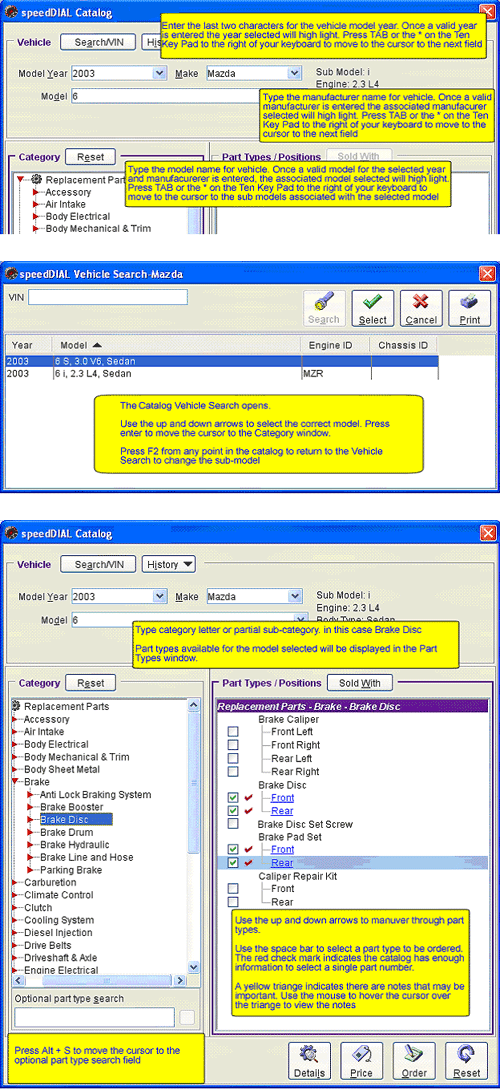
Once Part types have been selected, press enter or click the Price button to send all selected part types with a red check mark to the price and availability screen.
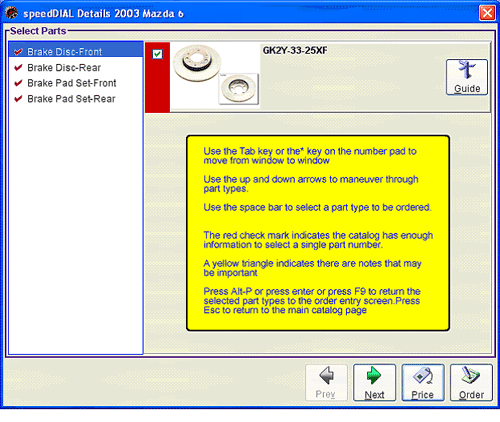
If any part types selected requires additional information to narrow the choice to one part number the customer will be transferred to the details window to provide the information required.
|